- Random Walk
- Version: 0.1
- April 30, 2006
- 1.9 KB

What is Python?
Python is the industry standard, cross-platform, object-oriented application scripting language. It is both sufficiently easy to use and powerful to let you develop complex scripts and expand the capabilities of Vue 2015.
Or so says the Vue manual, in an explanation that is as clear as mud (at least if you’re not an experienced software engineer).
Python is a computer programming language that lets people write things called scripts. It’s not the only programming language; there are lot of others such as C, C++, Perl and Visual Basic. Scripts are computer programs, little pieces of software that your computer can run.
E-on software included a version of Python in Vue 4 Pro, Vue 5 Infinite, Vue 6 Infinite, Vue 7 Infinite, Vue 7 xStream, Vue 7.5 Infinite, Vue 7.5 xStream, Vue 8 Infinite, Vue 8 xStream, Vue 8.5 Infinite, Vue 8.5 xStream, Vue 9 Infinite, Vue 9 xStream, Vue 9.5 Infinite, Vue 9.5 xStream Vue 10 Infinite, Vue 10 xStream, Vue 10.5 Infinite, Vue 10.5 xStream, Vue 11 Infinite, Vue 11 xStream, Vue 11.5 Infinite, Vue 11.5 xStream, Vue 2014 Infinite and Vue 2015 xStream which is why we are interested in it. Vue 7 Pioneer, Vue 7 Esprit, Vue 7 Pro Studio, Vue 7 Complete, Vue 8 Pioneer, Vue 8 Frontier, Vue 8 Esprit, Vue 8 Studio, Vue 8 Complete, Vue 9 Pioneer, Vue 9 Frontier, Vue 9 Esprite, Vue 9 Studio, Vue 9 Complete, Vue 10 Pioneer, Vue 10 Frontier, Vue 10 Esprite, Vue 10 Studio, Vue 10 Complete, Vue 11 Pioneer, Vue 11 Frontier, Vue 11 Esprite, Vue 11 Studio, Vue 11 Complete, Vue 2014 Pioneer, Vue 2014 Frontier, Vue 2014 Esprite, Vue 2014 Studio, Vue 2014 Complete and Vue 2015 Pioneer, Vue 2015 Frontier, Vue 2015 Esprite, Vue 2015 Studio and Vue 2015 Complete can also run third party Python scripts from Cornucopia3D but not from elsewhere. Their version of Python includes extra features that let a programmer make Vue do things. A script may do something simple, like adding stones to make a circle, or something complex, such as changing the textures of lots of objects at once.
How do I run a Python Script in Vue?
Running a Python script in Vue is really easy. If you’re using Vue 7 Infinite or above this video shows you what to do. If you’re using Vue 4 Pro, Vue 5 Infinite or Vue 6 Infinite the instructions are at the bottom of the page.
Vue 8 Infinite, Vue 8.5 Infinite, Vue 7 Infinite and Vue 7.5 Infinite
Vue 4 Pro, Vue 5 Infinite and Vue 6 Infinite
First click on Python in the menu at the top of the Vue window.

Vue Python Menu
Next you have two choices. You can either run a script you have run recently from the list.
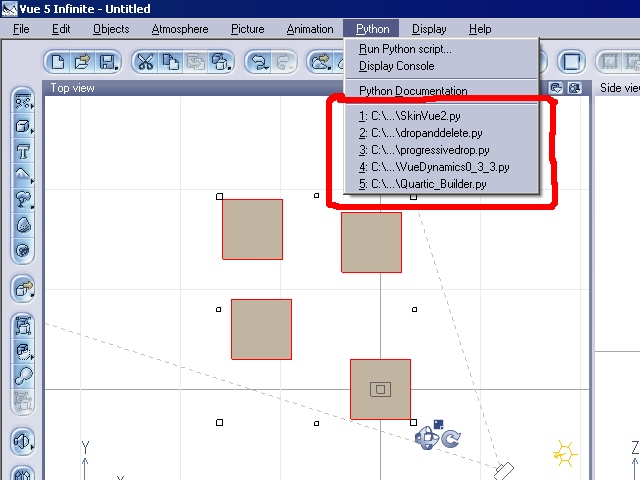
Vue Python Select Script
If the script you want to run isn’t in the list you can open a file by selecting “Run Python script…” .
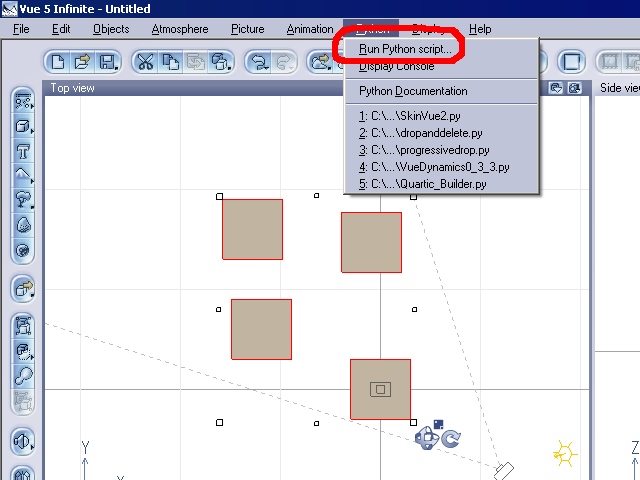
Vue Python Run Python
Then browse the file and select it to run it.
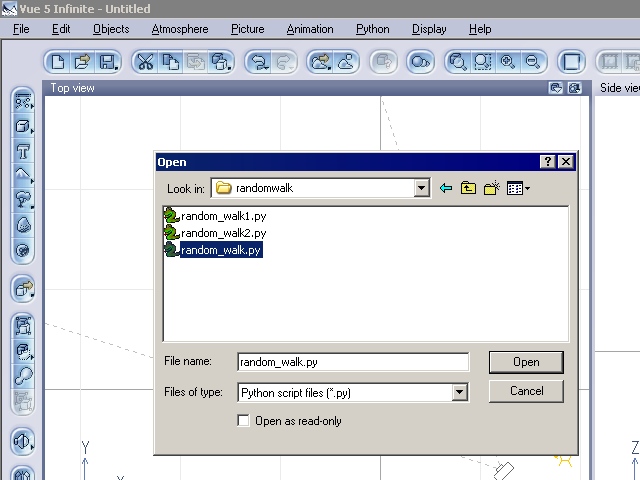
Browse to select a python script
So how do I use a Python Script?
First of all it needs to be on your computer. Save it somewhere on your computer that you can find it again. If it came as an archive (zip files are the most common) you’ll need to uncompress the archive. For the rest of this tutorial I’ll be using my randomwalk.zip script. If you don’t already have it on your computer download it now and unzip it.
It also needs to have been written for the version of Vue you’re using. Some scripts will require that you have the most recent release of Vue so they can work properly. It may say what version of Vue it requires or has been tested with. The script may come with separate instructions or the instructions may be at the top of the Python script. If they are at the top of the script, open it in a text editor (such as Word Pad on a PC) to read them.
For example: at the top of random_walk.py there are some instructions.
#******************************************************
# Add a random walk animation to selected objects
# - random_walk.py
# - Give Selected Objects a simple random
#   animation
# - By Mark Caldwell
# - Version 0.1
# - 30th April 2006
#
# How to use in 4 easy steps
#
# 1. Download this file onto your computer
#
# 2. Edit the configuration variables below
#
# 3. Select Objects to be Replace in Vue Infinite
#
# 4. Then run script and wait for it to work
#    To run it go to Python -> Run Python Script
#    Then locate the file on your computer
#
#******************************************************
We’ll come back to these in a moment in detail, especially step 2.
If the script has instructions that need to be followed before it is run (like step 3 in the random_walk.py script) carry them out now.
To run a script, run Vue and go to the Python Menu. Next select “Run Python script…” . Then find the script on your computer, select it and click Open. It should now run. Some scripts run quickly, some not so quickly depending on how complex they are. If you’ve run the script before, recently, it will appear in the list of five scripts on the Python menu, saving you time finding it.
The Instructions say to Edit the Script. Help!
#----------------------------------------------
# Configuration: Set these to alter end result
#----------------------------------------------

# Frames to generate
start=0     # First frame of animation
stop=101    # Last frame of animation if step divides into
            stop add 1 to get a frame on last step
step=10     # Number of frames between key frames

# Starting Velocity of objects
velsxmin=-1  # Starting Minimum Velocity in the x direction
velsxmax=1   # Starting Maximum Velocity in the x direction
velsymin=-1  # Starting Maximum Velocity in the y direction
velsymax=1   # Starting Maximum Velocity in the y direction
velszmin=-1  # Starting Maximum Velocity in the z direction
velszmax=1   # Starting Maximum Velocity in the z direction

# Random Walk accelerations applied at a key frame
accxmin=-20  # Minimum Acceleration the x direction
accxmax=20   # Maximum Acceleration the x direction
accymin=-20  # Minimum Acceleration the y direction
accymax=20   # Maximum Acceleration the y direction
acczmin=-20  # Minimum Acceleration the z direction
acczmax=20   # Maximum Acceleration the z direction
By changing these lines you can change what the script does. Each line has a variable that you can change that will change how the script works when it’s run eg start=0 . This is setting the first frame of the animation. If I wanted to only have it animate from the tenth frame I could change it to start=10 . If I want it to stop at the fiftieth stop=50.
Once you’ve made the changes save the script and try running it.
Hopefully it will run. but if it doesn’t have a look at the Python Console in Vue by going to Python Menu then Python Console. There may be an error message there that tells you where the problem is (you may have put a letter in instead of a number for example). If you don’t understand an error message just go back to the copy and try again.
What Next?
I hope this has given you a taste of how to use Python Scripts in Vue. If you’d like to learn to write your own, there are lots of websites about writing Python in general. Python’s own website is a good starting point ( http://www.python.org/ ). If you prefer learning from a book, I’m a big fan of “Learning Python 2nd Edition” (published by O’Reilly Media Inc., ISBN 0-596-00281-5). For special features of Vue Python, see the documentation by clicking on the Python menu then Python Documentation in V5I. Python isn’t just for making Vue do new cool stuff; you can write scripts that do all sorts of other things for you.
So where can I find Python Scripts?
There are some that come with Vue in the Python/Scripts folder on the Application CD. Others can be found on the Internet. Python scripts normally have a .py file extension (eg random_walk.py) or they may come as an archive such as a zip file containing a .py file and possibly other files too. My Vue links directory now includes a selection of links to Vue and Python related resources: Vue Links Directory Python